Exporting Project Backups
A project backup is a ZIP of CSV files with all the data in your Arbimon project: sites, species, recordings, playlists, validations, tags, templates and analysis results (pattern matching, RFM, soundscapes).
- Audio files are linked, not bundled. The ZIP doesn't contain the audio itself;
recordings.csvhas a download link for each recording, so getting the audio is an extra step — see Downloading Recordings from a Project Backup. - Because the audio is linked rather than bundled, the ZIP itself is small: typically under 200 MB, and rarely more than 500 MB.
- Derived files (such as the exports and figures on the Insights pages) are not included; download them from the relevant Insights page.
- Only project Admins and Primary Admins can request or cancel a backup.
Request a backup
-
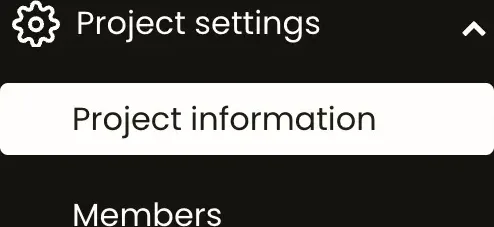
In the main menu on the left, go to Project settings → Project information.
-
Scroll down to the Project backup section and click Request backup.
- Confirm with Request backup in the pop-up.
What happens next
- Most backups are ready within 2 hours; large projects or a busy queue can take longer.
- We'll email you when your backup is ready, with a download link.
- The backup history next to the button shows each request's status: Requested, In progress, Success, Expired, Failed or Cancelled.
- The download link expires after 7 days (status Expired). The recording links inside the backup expire at the same time, so download what you need promptly.
Limits and cooldowns
- Only one backup at a time per project.
- After a successful project backup, you must wait at least 24 hours before Arbimon will allow you to request another backup of the same project.
- If a project backup fails or is cancelled before completion, you can request a new one after a 1 hour recovery period.
Cancelling a backup
While a backup is Requested or In progress, click Cancel in the backup history. The person who requested it gets an email saying it was cancelled and when a new backup can be requested.
If a backup fails, the requester gets an email and our team is notified.
What's in the ZIP
Each dataset is a CSV file named <dataset>.0001.csv. Very large datasets are split into numbered parts (recordings.0002.csv, …). A dataset with no data (for example, no RFM models) has no file.
| File | Contents |
|---|---|
sites |
Sites and their metadata: name, latitude, longitude, elevation, timezone, country, hidden, created date |
species |
Species and songtypes added to the project (with family and taxon) |
recordings |
All recordings: site, local and UTC date-time, sample rate, duration, upload time, metadata, and a url to download the audio file |
recording_tags |
Tags added to recordings, with time and frequency bounds |
playlists |
Playlists in the project |
playlist_recordings |
The recordings in each playlist |
templates |
Project templates, with a url to download each template |
recording_validations |
Species validations, from the visualizer, pattern matching and AED |
pattern_matchings |
Pattern matching jobs |
pattern_matching_rois |
Pattern matching results (ROIs), with scores and validations |
soundscapes |
Soundscape jobs, with a url to download each result |
rfm_models |
Random Forest Models |
rfm_classifications |
Random Forest Model classification results |
You can also bulk-download project templates as WAV files (see Managing Templates) and the results of all soundscape jobs (see the bottom of Creating a Soundscape Job).
Downloading recordings
Each row of recordings.csv has a url that downloads that recording's audio file under its original file name. Follow Downloading Recordings from a Project Backup to download them in bulk.